Use case · Remote
Run long agent tasks on a dev box
Long agent runs shouldn’t die when your laptop sleeps. Put them on a dev box and keep them in the same window as your local work — one pane local, two panes remote, one tab.
The problem: remote work in a separate world
Remote sessions usually mean another terminal app, another set of tabs, and manual port forwarding to see what the server is serving. Local and remote work never sit side by side.
How Termany helps
Each pane picks its own connection, so a local shell and two remote hosts can share a tab. Add a connection with a display name, optional port, and automatic, password, or identity-file authentication, then Test connection before you need it.
- A dropped session reconnects when you press Enter
- When a remote pane starts serving a port, one click opens an SSH forward on loopback
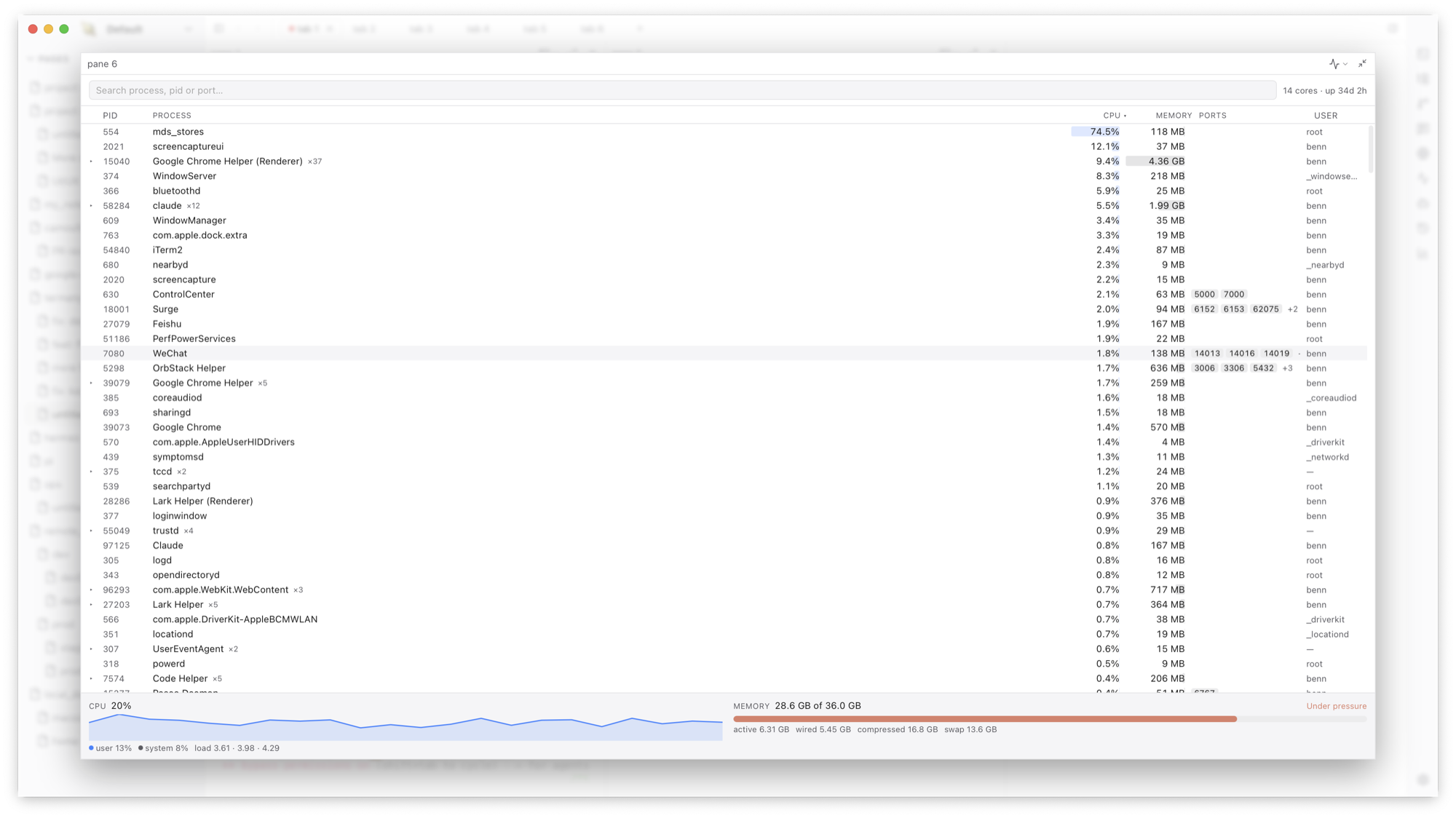
- The activity monitor (⇧⌘M) shows processes and the ports they hold
A typical workflow
Keep the long-running work remote and the review local.
- Open a pane on the dev box and start the agent there
- Keep a local shell and the file tree in the panes beside it
- When the remote dev server comes up, open the forwarded URL locally
- Search the monitor by port number to find and stop a stuck process
What it doesn’t do
Termany does not provision or host machines — you bring your own SSH host. A hosted cloud backend is on the roadmap, not available today.
Frequently asked questions
Which SSH authentication methods are supported?
Automatic, password, and identity file, configured per connection.
What happens if the connection drops?
Press Enter in the pane and the session reconnects.
Can I see remote ports in my local browser?
Yes. When a remote pane starts serving a port, one click opens an SSH forward on loopback so the URL opens locally.